4. PC Software&Programming
4.1 PC Software Introduction
This section mainly introduces the SpiderPi PC software, which can help you quickly understand how to use it.
First connect to VNC remote desktop and double-click “SpiderPi” to start it. (Click “Execute” in the pop-up window ).


The main interface of the SpiderPi PC software in “English” mode consists of four areas, as shown below:
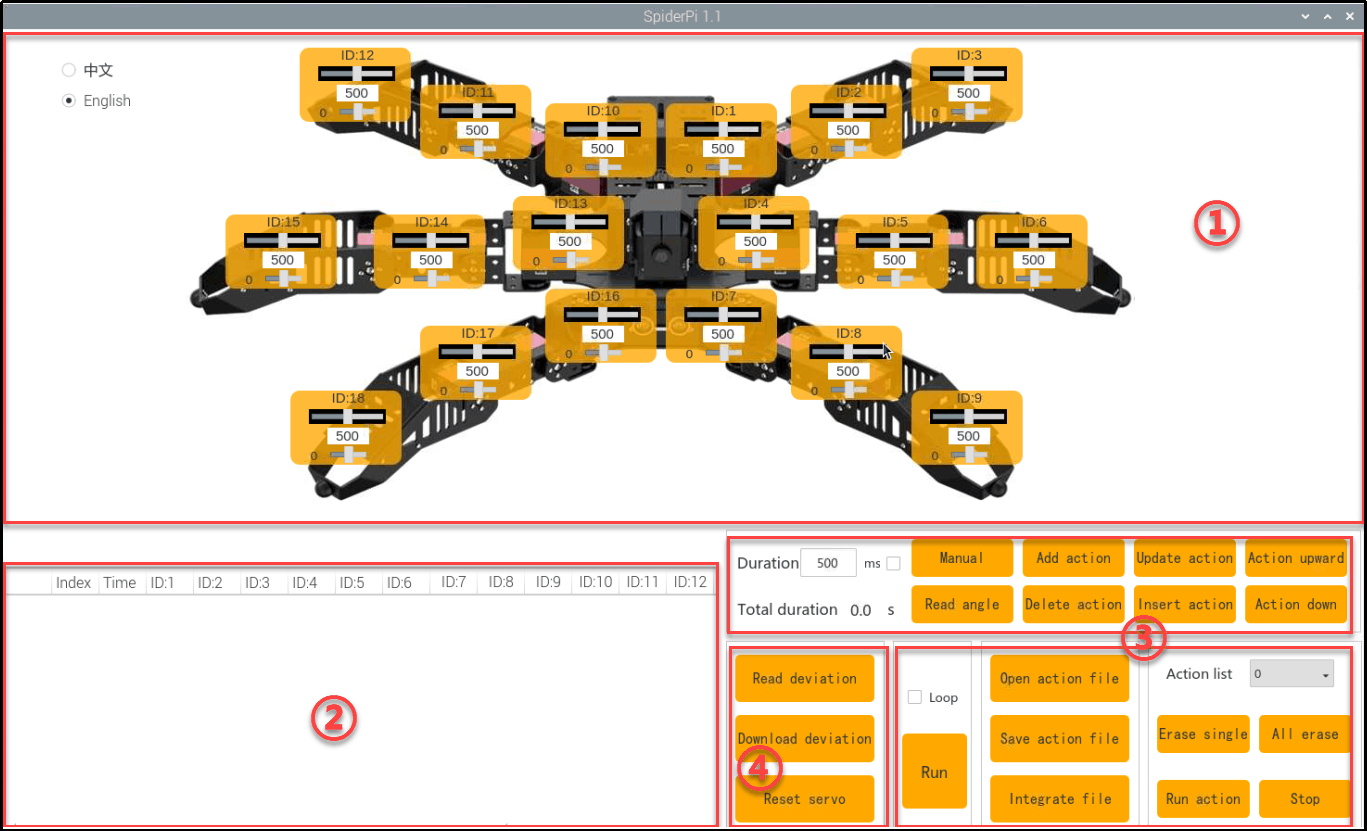
① Servo operation area
Drag the corresponding servo to adjust the servo position:
| Icon | Function |
|---|---|
 |
ID number.Take NO.9 servo as example. |
 |
Adjust servo position from 0 to 1000. |
 |
Adjust servo deviation from -125 to 125. |
② Action data list
Action list display the running time and servo data of the current action.

| Icon | Function |
|---|---|
 |
Action group NO. |
 |
Running time of the action. |
 |
Action data of the corresponding servo.  to revise. to revise. |
③ Action group setting
| Icon | Function |
|---|---|
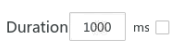 |
Action running duration time, click the icon in the value, can be modified. Note: the "Update Action" button is needed to take effect. In addition, the value range of the time is 20-9999. |
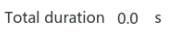 |
The total running time of all the actions in an group action to complete run. |
 |
Click to add the new action. |
 |
Delete action is delete the selected action in the list. |
 |
Update the selected action. |
 |
Insert the new action on the action list. Action time(ms). |
 |
Move up the selected action. |
 |
Move down the selected action. |
 |
Click to run all the actions on the edited list once. |
 |
If "Loop" is ticked, SpiderPi will repeat the action. |
 |
Click to open and select the provided action groups. |
 |
Save the current actions in the action list into the computer. |
 |
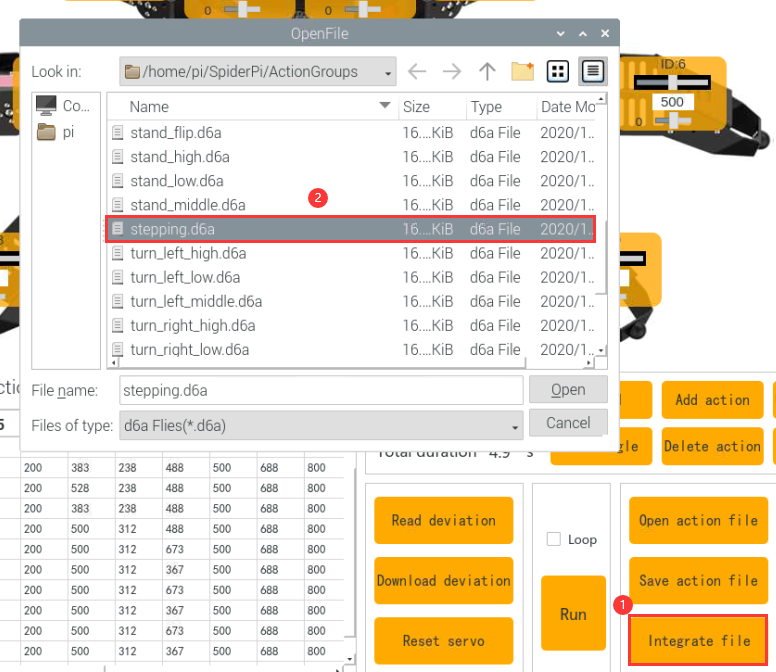
Click to integrate provided action group. Choose one action group, click integrate and then choose another one. |
 |
Display the saved action groups. |
 |
Delete the current action group file. |
 |
(Be careful!)Deleted all the action group files. |
 |
Run the selected action group once. |
 |
Stop running the action group. |
④ Servo deviation setting area
| Icon | Function |
|---|---|
 |
Click to read the save the servo deviation. |
 |
Click to download the deviation adjustment in the PC software. |
 |
Click to return all the servos the middle position(500). |
4.2 Call Action Group
4.2.1 Goal
This section focuses on how to call the built-in action group via SpiderPi PC software.
4.2.2 Call Action Group
(1) Power on the robot.
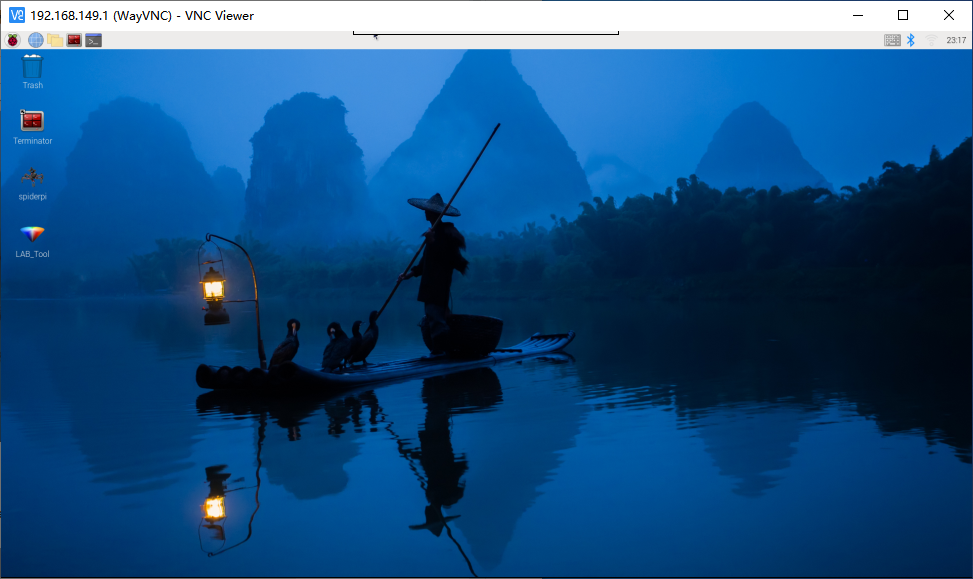
(2) Click  ,Select “Execute” to open the PC software.
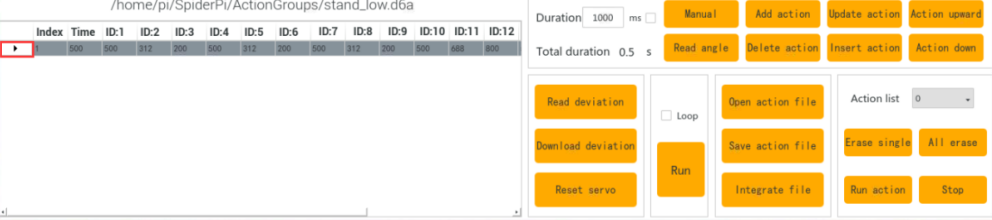
(3) Click “Open action file” to open the action group file located in the same directory as this lesson.
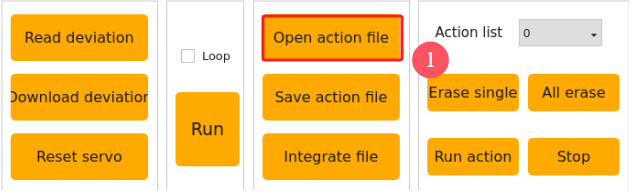
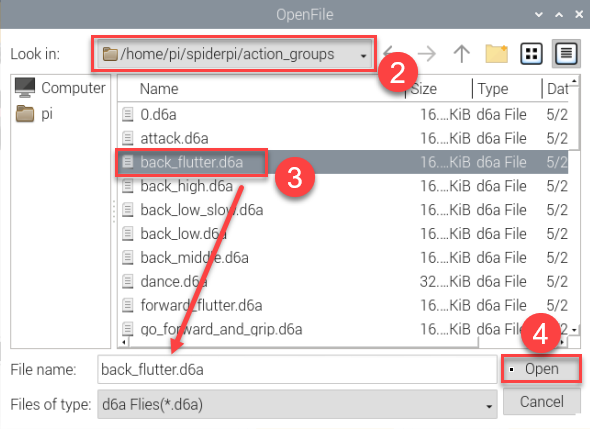
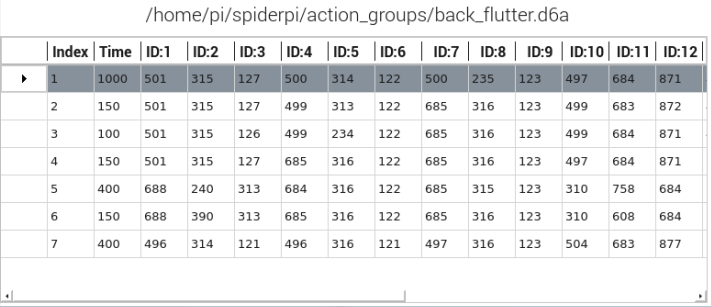
(4) The action data list will display the opened action group.
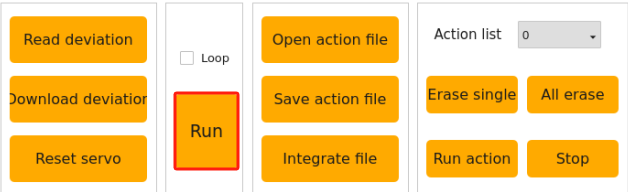
(5) Click “Run” .
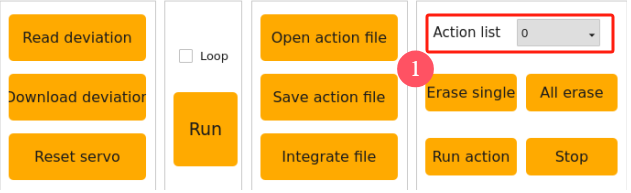
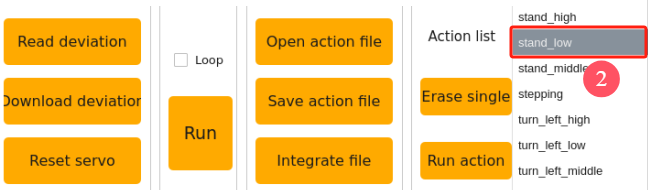
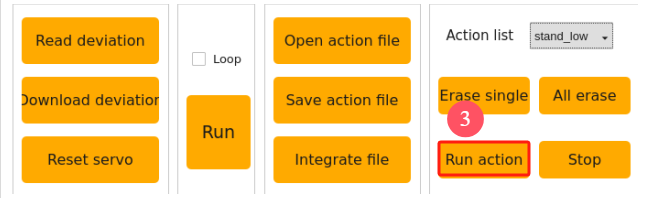
(6) You can click the dropdown button of the action group, and select the action group to be run. Then, click “Run action group”.
4.3 Action Group Programming
4.3.1 Project Outcome
Create an action group consisting of 10 actions to allow the SpiderPi to “Wave”.
4.3.2 Complete Program
(1) Action Programming
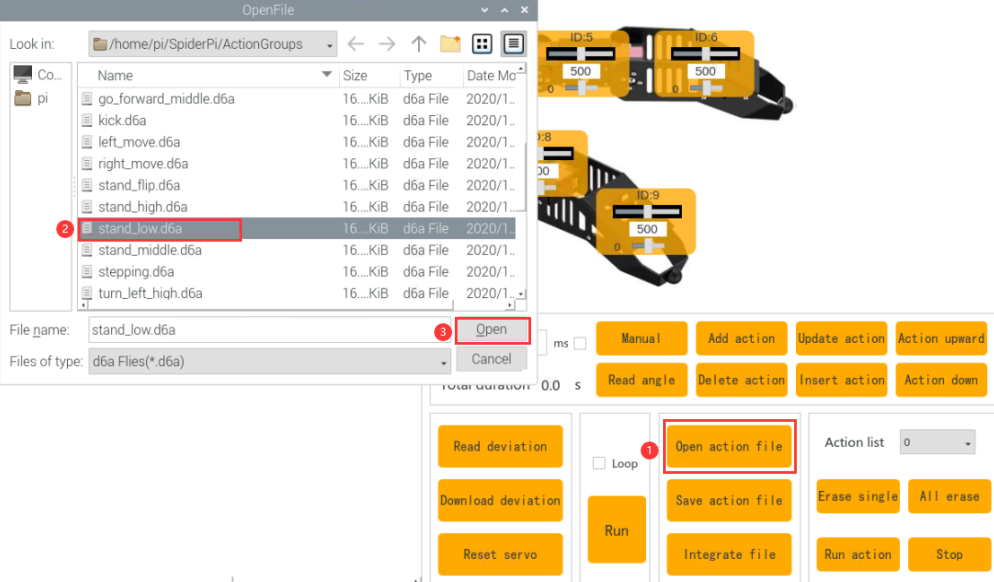
① After starting, program SpiderPi to stand in the low stance. Click “Open action group file” button and to update the action value to the servo control area.
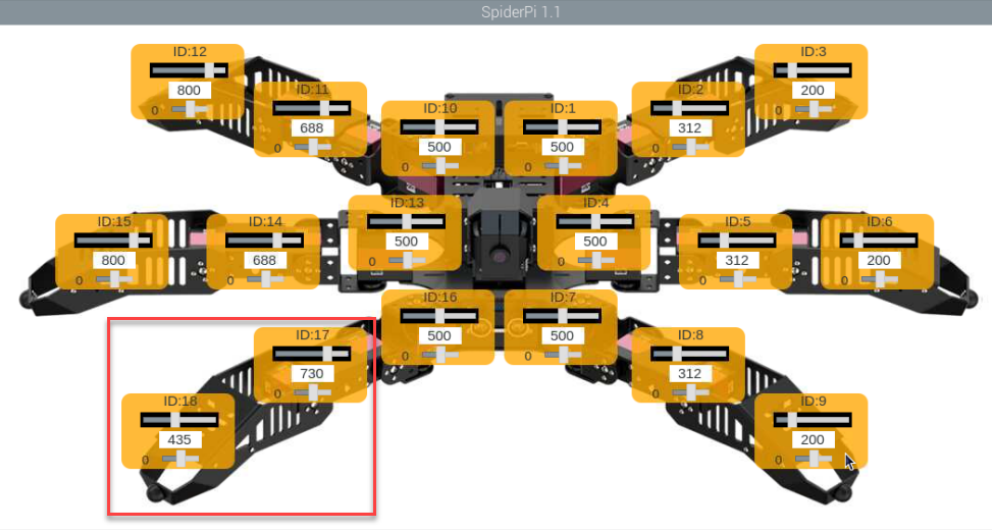
② Program SpiderPi to rise the right No.1 leg. Please adjust according to the below servo data and click “Add action” button to add the action data. Do not forget to add each single action into the list.
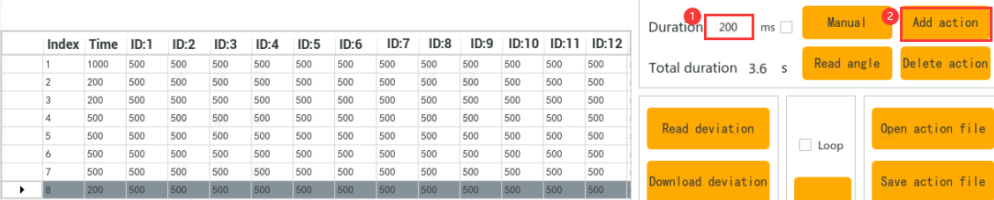
③ For the better performance, set the No.3 action as the preparation. Modify the time to 200ms and add the step 2 again.

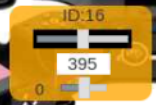
④ Modify the time back to 500ms and wave the raised leg, which requires to advise the ID:16 servo.
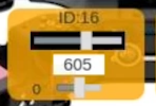
⑤ Rotate the raised right leg to left which is to adjust the ID:16 servo again.
⑥ Program the raised leg to turn as the No.6 action. Just copy the previous action. Move the mouse to the 4th action, then click to update the action value, click “Add Action” again.


⑦ No.7 action we let the right leg rotate to the left, and the method of step 6 can be taken to copy the No. 5 action.
⑧ No. 8 moves back to the status when the right leg is just raised, that is, copy 2 action. (Reference Step 6)
⑨ No. 9 action we use to transition, modify the time to 200ms, and add the action of step 8 again.

⑩ The last action allows the robot to return to a low posture, copy the No.1 action. (Reference Step 6)
The full numerical parameters of the action group are shown in the following table: (red is a value that needs to be adjusted)

(2) Save Action group
After programming, please save the action group for future debugging. Click “Save action file”, choose the path “/home/pi/SpiderPi/ActionGroups”, name it (suck as”greet”) and then click “Save” button.
4.4 Integrate Action Groups
4.4.1 Project Outcome
Integrate the provided basic actions to become a new action group. This section takes the integrate “Wave” and “stepping” action as an example.
4.4.2 Complete Program
① Connect VNC and open SpiderPi PC software.
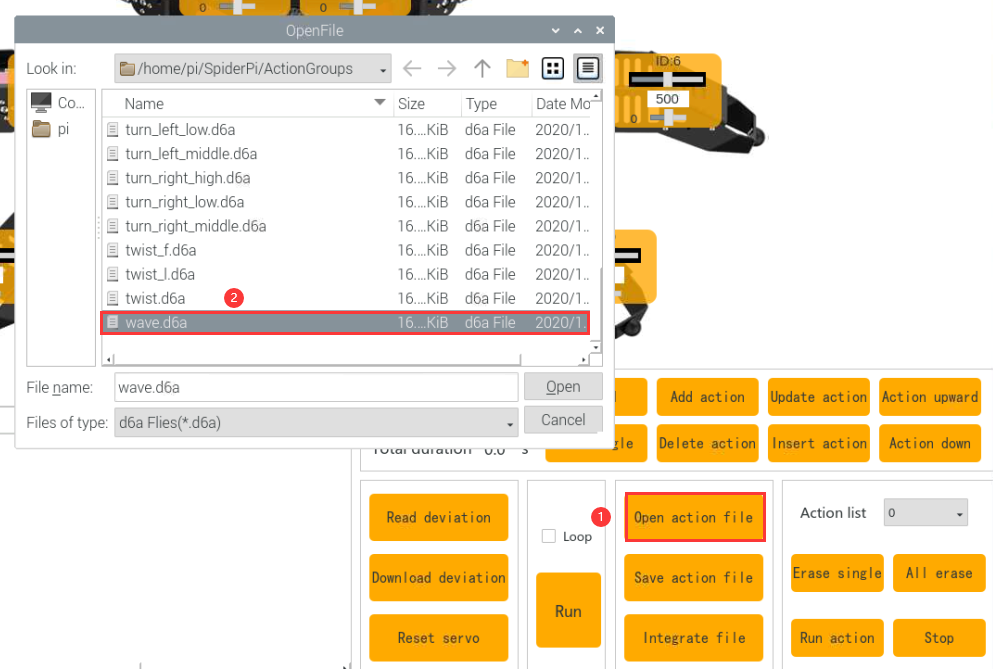
② Click “Integrate file”, choose and double click “wave.d6a” to open.(And “/home/pi/SpiderPi/ActionGroups” file)
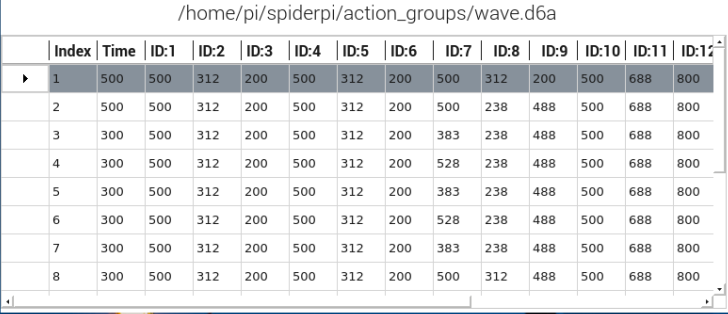
③ Then the action list displays the detailed parameter of action group.
④ Click “Integrate file” again, choose “stepping.d6a” and double click to select it.
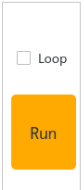
⑤ Click “Run” to execute the new integrated actions online.
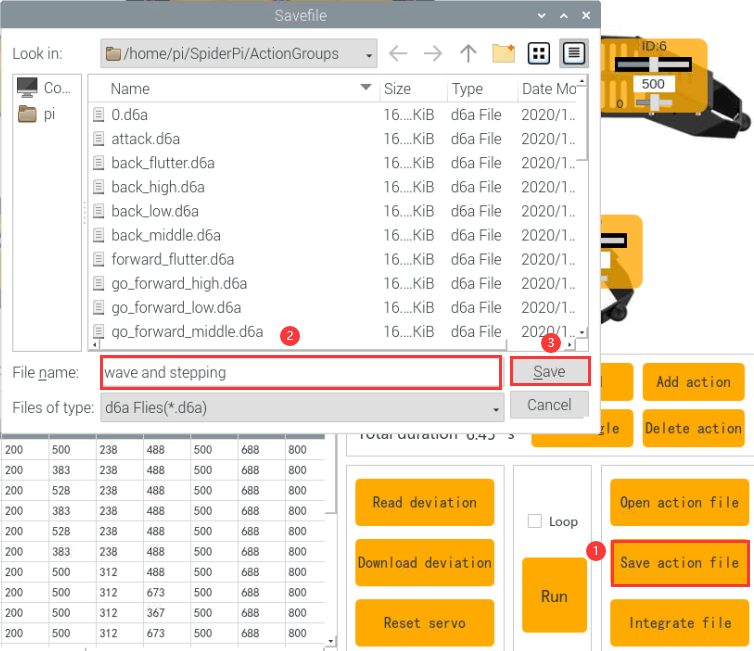
⑥ Click “Save action file” button and enter new action group name (such as “wave and stepping” ) to save the new integrated action group for the future debugging.
4.5 App Custom Calling
4.5.1 Goal
Execute the action group file in 4.3 Action Group Programming using the custom function in the app. Let’s demonstrate on executing the “greeting” action.
5.2 Getting Ready
(1) After connecting VNC, open the file manager on the system desktop.

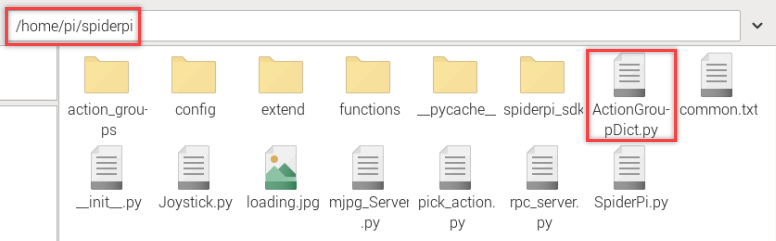
(2) Access the path /home/pi/spiderpi. Find the file “ActionGroupDict.py”, and open it with the “Text Editor”.
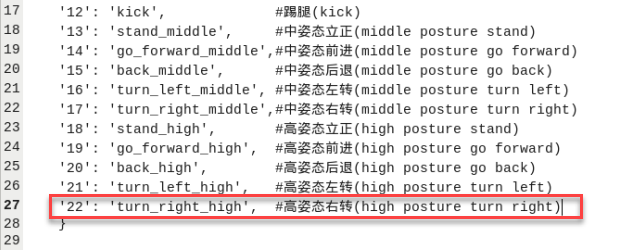
(3) Copy the line where the action 22 is located.
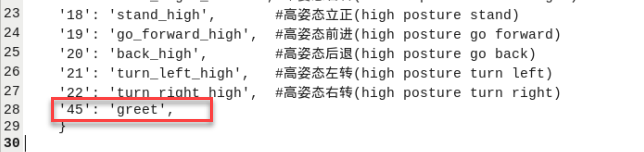
(4) Paste the code on a new line. Set the number as 45 and name it as “greet”. Please refer to the names of the action group files in /home/pi/spiderpi/ActionGroups.
Note
Please avoid using numbers that have been defined or the number 255. Keep the action group name consistent with the names in the storage directory (/home/pi/TonyPi/action_groups).
(5) Press “Ctrl+S” to save and exit.
(6) Run the command to reboot the Raspberry Pi. (This step must be performed.)
sudo reboot
4.5.2 Operation Steps
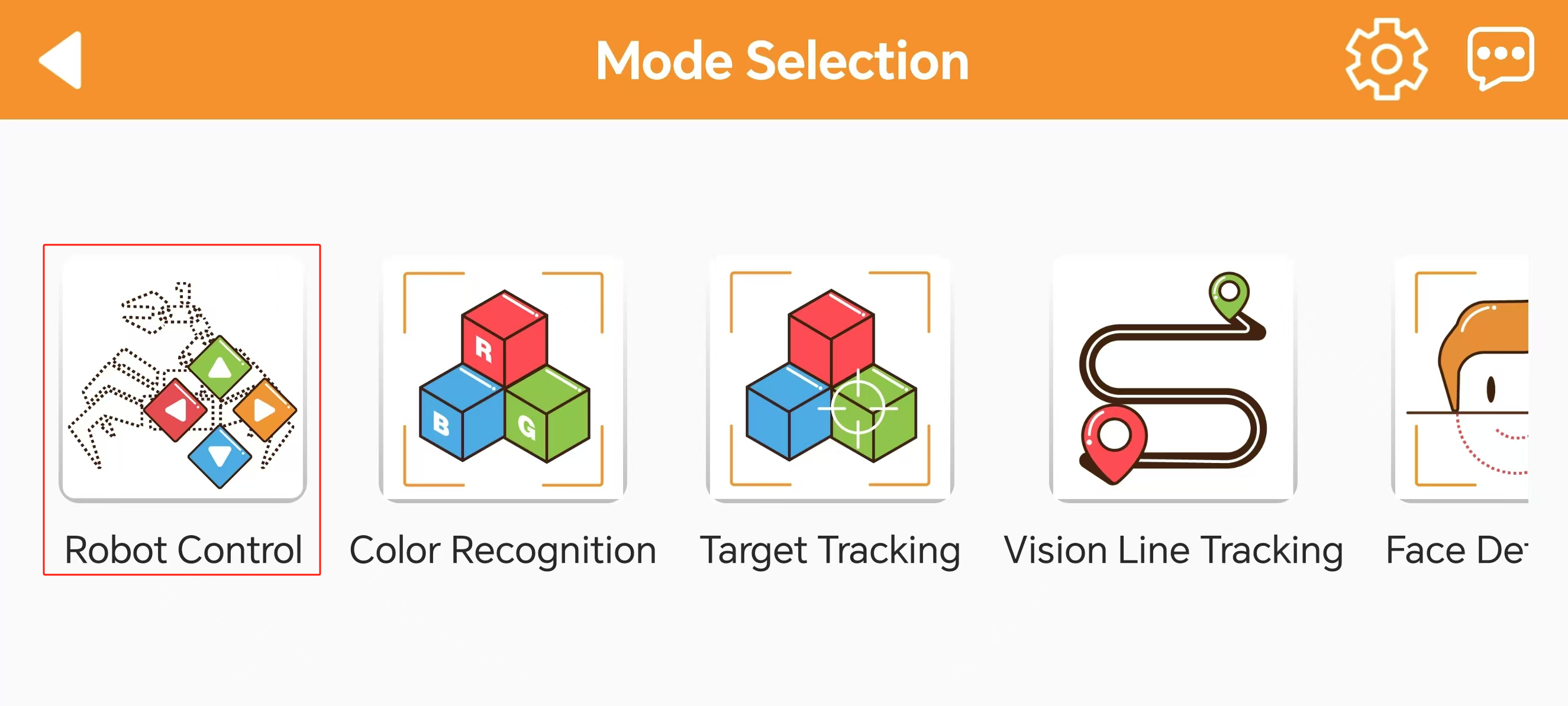
(1) Open the app, and connect to the robot. Enter the “Robot Control” interface.
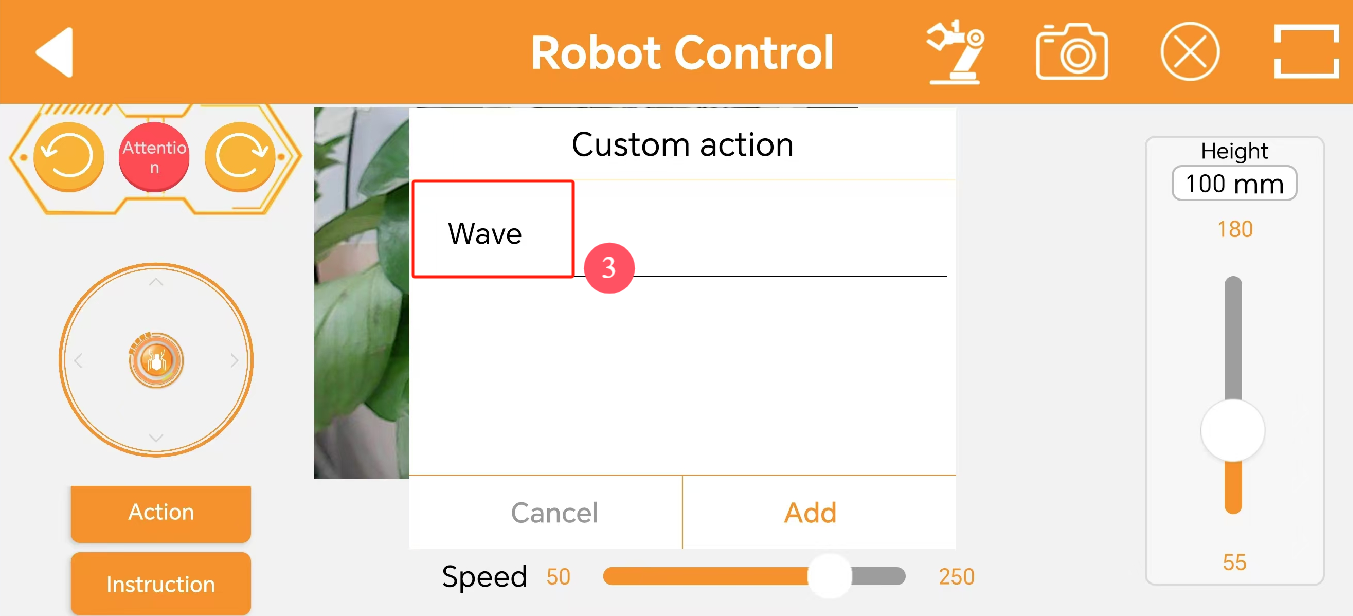
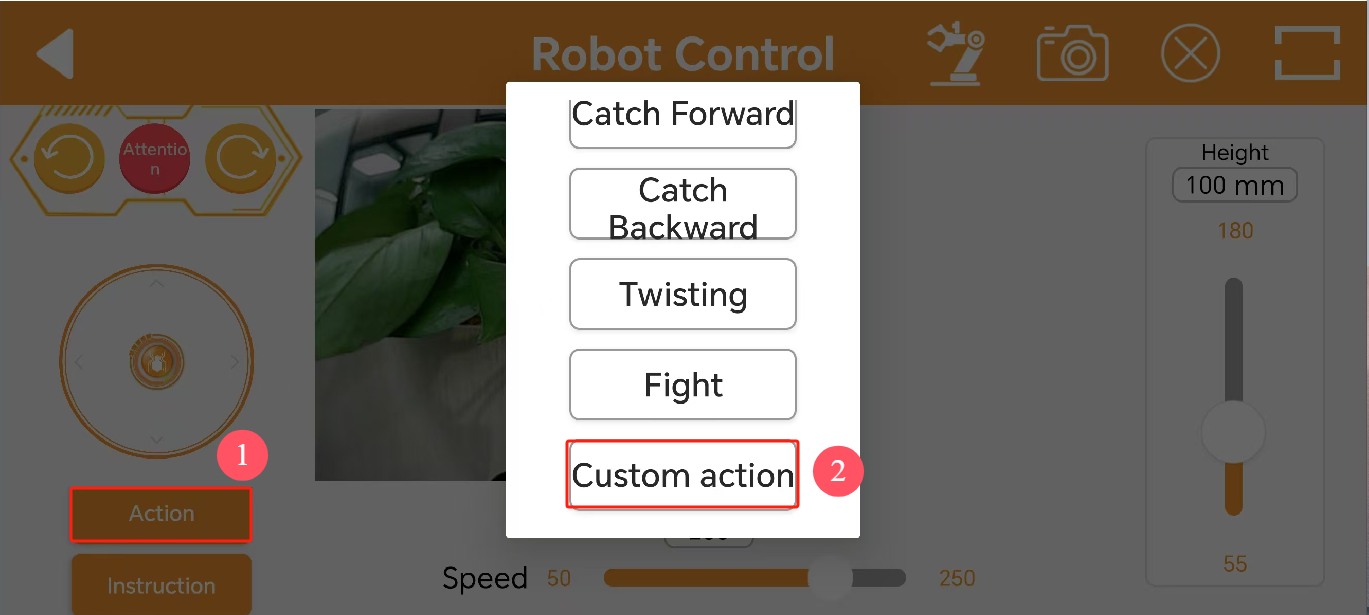
(2) Click the “Action” button. Then, click “Custom actions” in the pop-up window.
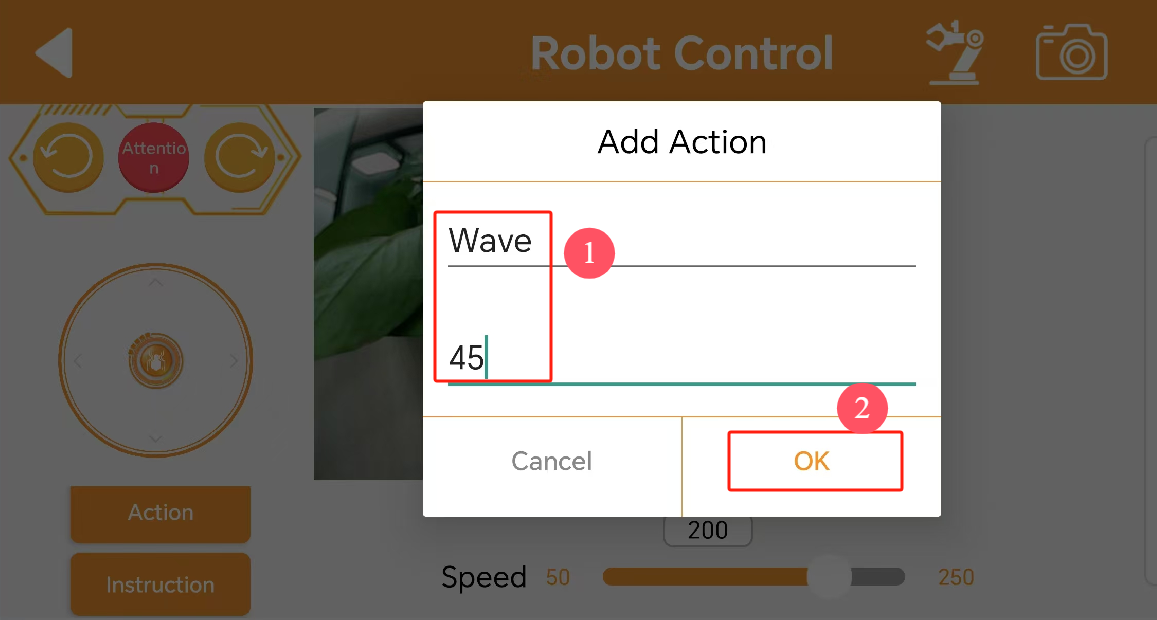
(3) Fill in the saved action group name and the number. Click “OK” to save.
The name can be customized. The number should be the same as the filled one in ActionGroupDict.py.
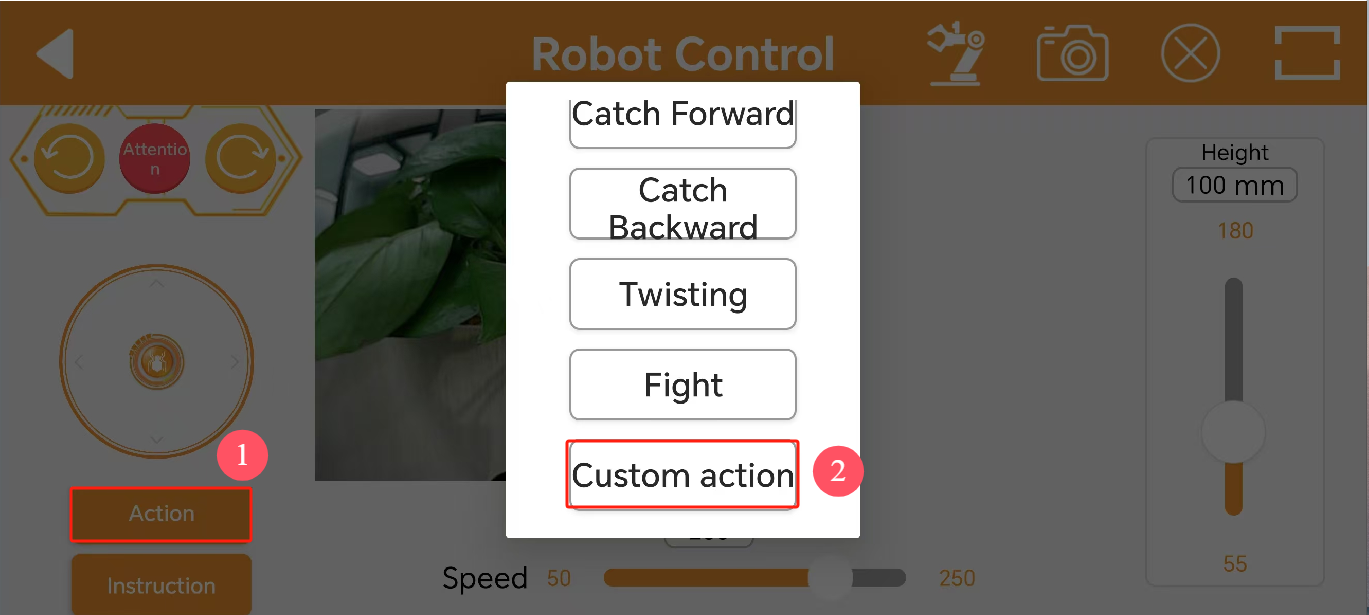
(4) After adding, click “Action -> Custom action -> Wave” to execute the action.
(5) If you want to modify or delete an action, long-press the action name and select the corresponding operation.