4. Raspberry Pi Development
4.1. Getting Started
4.1.1 Wiring Instruction
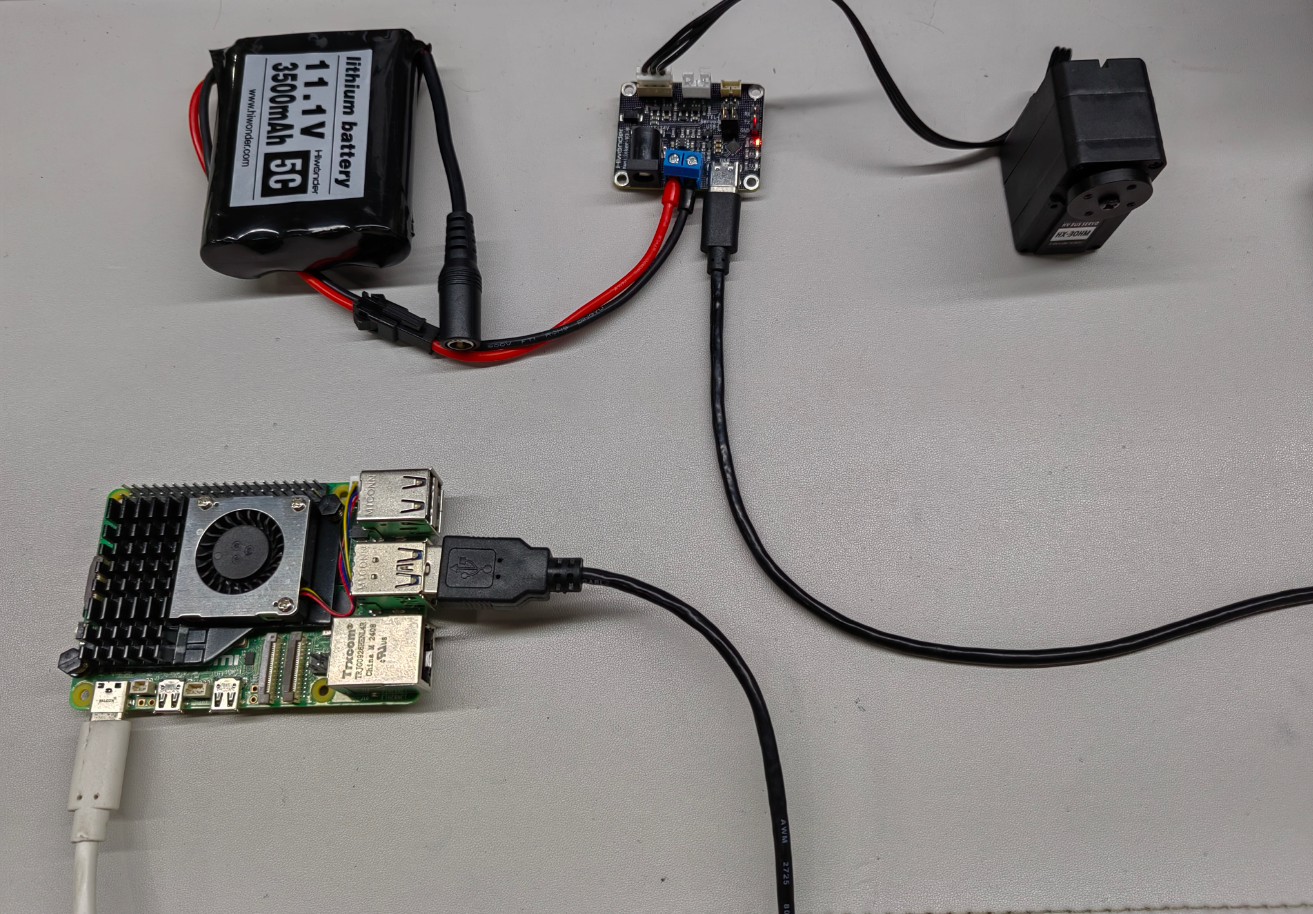
This example uses a Raspberry Pi 5 controller powered by a 5 V adapter. The bus servo is connected to the debugging board, which is powered by an 11.1 V lithium battery. Finally, the debugging board is connected to any USB port of the Raspberry Pi 5 using a Type-C cable.
Note
When using Hiwonder’s lithium battery, connect the battery cable with the red wire to the positive (+) terminal and the black wire to the negative (–) terminal of the DC port.
Before connecting the battery cables, make sure they are not already attached to the lithium battery. This prevents the risk of a short circuit caused by accidental contact between the positive and negative wires.
4.1.2 Environment Configuration
Install VNC software on PC. The software package is stored in 2. Softwares \ Remote Connection Software. For the detailed operations of VNC, please refer to the relevant tutorials.
Drag the program and SDK library files into the Raspberry Pi system image. In this example, they are placed in the Demo folder on the desktop. Note: Make sure the library files are placed in the same directory as the program.
4.2 Development Example
Note
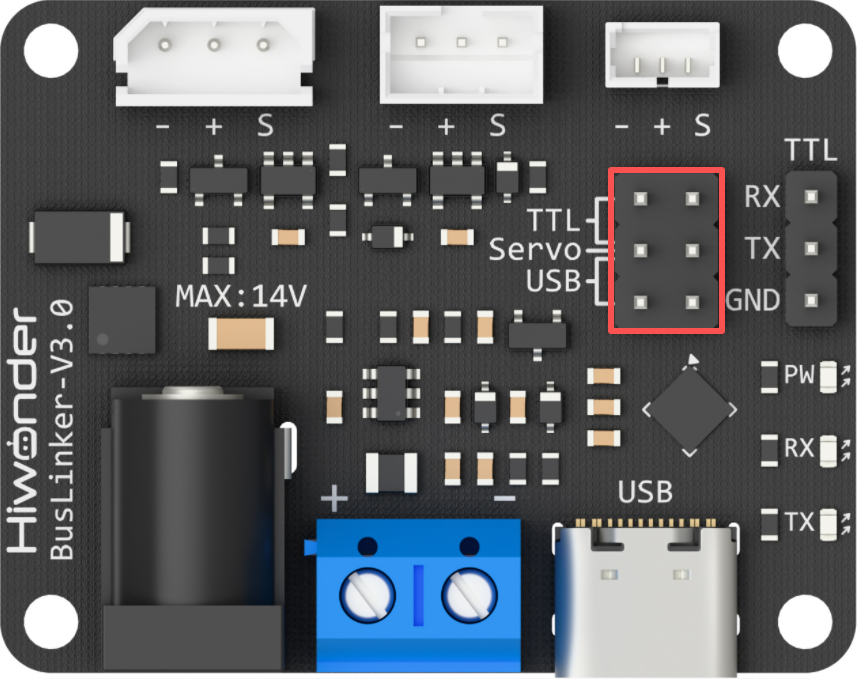
Before running this example, ensure that the jumpers on the debugging board are installed on the Servo and USB pins. Otherwise, communication will not function properly.
4.2.1 Reading the Servo Status
This example displays the bus servo status information through the terminal window.
4.2.1.1 Run Program
Open a new terminal and enter the following command to navigate to the program directory:
cd Desktop/Demo/examples

Run the program by entering:
python3 ping.py

4.2.1.2 Program Outcome

After running the program, the terminal prints the servo status information, which corresponds to the data frames returned by the servo.
4.2.1.3 Program Brief Analysis
Import the required libraries.
import sys
import os

sys.path.append("..")

from servo_sdk import *
Initialize the communication port and servo objects.
PortHandler = PortHandler('/dev/ttyACM0')
ServoHandler = HxServoHandler(PortHandler)
Create and open a port object, then verify and set the port baud rate.
if PortHandler.openPort():
    print("Succeeded to open the port")
else:
    print("Failed to open the port")
    quit()

if PortHandler.setBaudRate(1000000):
    print("Succeeded to change the baudrate")
else:
    print("Failed to change the baudrate")
    quit()
Read the operating status of servo ID 1 and print the response packets returned by the servo.
rxpacket, result, error = ServoHandler.ping(1)
if result != COMM_SUCCESS:
    print("%s" % ServoHandler.getTxRxResult(result))
else:
    print(f"rx: {' '.join(f'{byte:02X}' for byte in rxpacket)}")
if error != 0:
    print("%s" % ServoHandler.getRxPacketError(error))
4.2.2 Reading the Servo Position
This example displays the bus servo position information through the terminal window.
4.2.2.1 Run Program
Open a new terminal and enter the following command to navigate to the program directory:
cd Desktop/Demo/examples
Run the program by entering:
python3 read_position.py

4.2.2.2 Program Outcome
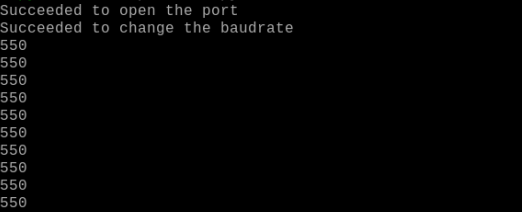
After running the program, the terminal continuously prints the current position information of the servo.
4.2.2.3 Program Brief Analysis
Import the required libraries.
import sys
import os

sys.path.append("..")

from servo_sdk import *
Initialize the communication port and servo objects.
PortHandler = PortHandler('/dev/ttyACM0')
ServoHandler = HxServoHandler(PortHandler)
Create and open a port object, then verify and set the port baud rate.
if PortHandler.openPort():
    print("Succeeded to open the port")
else:
    print("Failed to open the port")
    quit()

if PortHandler.setBaudRate(1000000):
    print("Succeeded to change the baudrate")
else:
    print("Failed to change the baudrate")
    quit()
The
readLoadfunction continuously reads the current position of servo ID 1 and prints it, then closes the port.
while True:
    pos, result, error = ServoHandler.readLoad(1)
    if result != COMM_SUCCESS:
        print("%s" % ServoHandler.getTxRxResult(result))
        break

    if error != 0:
        print("%s" % ServoHandler.getRxPacketError(error))
        break

    print(pos)
    time.sleep(0.1)  # Delay for 0.1 seconds

PortHandler.closePort()
4.2.3 Servo Movement Control in Write Mode
4.2.3.1 Run Program
Open a new terminal and enter the following command to navigate to the program directory:
cd Desktop/Demo/examples
Run the program by entering:
python3 write_position.py

4.2.3.2 Program Outcome
After running the program, servo ID 1 moves to position -3000 at a speed of 100 steps per second and an acceleration of 0 steps per second squared.
4.2.3.3 Program Brief Analysis
Import the required libraries.
import sys
import os

sys.path.append("..")

from servo_sdk import *
Initialize the communication port and servo objects.
PortHandler = PortHandler('/dev/ttyACM0')
ServoHandler = HxServoHandler(PortHandler)
Create and open a port object, then verify and set the port baud rate.
if PortHandler.openPort():
    print("Succeeded to open the port")
else:
    print("Failed to open the port")
    quit()

if PortHandler.setBaudRate(1000000):
    print("Succeeded to change the baudrate")
else:
    print("Failed to change the baudrate")
    quit()
The
writePosExfunction is used to control the servo movement, and the port is closed afterward.
result, error = ServoHandler.writePosEx(1, -3000, 100, 0)

if result != COMM_SUCCESS:
    print("%s" % ServoHandler.getTxRxResult(result))
if error != 0:
    print("%s" % ServoHandler.getRxPacketError(error))


# Close port
PortHandler.closePort()
4.2.4 Servo Movement Control in RegWrite Mode
4.2.4.1 Run Program
Open a new terminal and enter the following command to navigate to the program directory:
cd Desktop/Demo/examples
Run the program by entering:
python3 write_position.py

4.2.4.2 Program Outcome
After running the program, servo ID 1 moves back and forth between positions 20 and 1000 at a speed of 1500 steps per second and an acceleration of 0 steps per second squared, with an interval of approximately 0.75 seconds.
4.2.4.3 Program Brief Analysis
Import the required libraries.
import sys
import os

sys.path.append("..")

from servo_sdk import *
Initialize the communication port and servo objects.
PortHandler = PortHandler('/dev/ttyACM0')
ServoHandler = HxServoHandler(PortHandler)
Create and open a port object, then verify and set the port baud rate.
if PortHandler.openPort():
    print("Succeeded to open the port")
else:
    print("Failed to open the port")
    quit()

if PortHandler.setBaudRate(1000000):
    print("Succeeded to change the baudrate")
else:
    print("Failed to change the baudrate")
    quit()
The
writeRegPosExfunction is used to control the servo movement, and theregActionfunction triggers the execution ofwriteRegPosEx. The port is closed afterward.
while True:
    result, error = ServoHandler.writeRegPosEx(1, 1000, 1500, 0)
    if result != COMM_SUCCESS:
        print("%s" % ServoHandler.getTxRxResult(result))
        break

    if error != 0:
        print("%s" % ServoHandler.getRxPacketError(error))
        break
    ServoHandler.regAction()
    time.sleep(((1000-20) / 1500) + 0.1)  #//[(P1-P0)/(V)] + 0.1

    # Servo (ID1~10) runs at a maximum speed ofV=1500*0.059=88.5rpm until it reaches position P0=20
    result, error = ServoHandler.writeRegPosEx(1, 20, 1500, 0)
    if result != COMM_SUCCESS:
        print("%s" % ServoHandler.getTxRxResult(result))
        break

    if error != 0:
        print("%s" % ServoHandler.getRxPacketError(error))
        break

    ServoHandler.regAction()
    time.sleep(((1000 - 20) / 1500) + 0.1)
    # time.sleep((1000-20)/(1500) + 0.1)) #//[(P1-P0)/(V)] + 0.1

# Close port
PortHandler.closePort()
4.2.5 Servo Movement Control in SyncWrite Mode
4.2.5.1 Run Program
Open a new terminal and enter the following command to navigate to the program directory:
cd Desktop/Demo/examples
Run the program by entering:
python3 sync_write.py

4.2.5.2 Program Outcome
After running the program, servos ID 1 to 3 simultaneously move back and forth between positions 20 and 1000 at a speed of 1500 steps per second and an acceleration of 0 steps per second squared, with an interval of approximately 0.75 seconds.
4.2.5.3 Program Brief Analysis
Import the required libraries.
import sys
import os

sys.path.append("..")

from servo_sdk import *
Initialize the communication port and servo objects.
PortHandler = PortHandler('/dev/ttyACM0')
ServoHandler = HxServoHandler(PortHandler)
Create and open a port object, then verify and set the port baud rate.
if PortHandler.openPort():
    print("Succeeded to open the port")
else:
    print("Failed to open the port")
    quit()

if PortHandler.setBaudRate(1000000):
    print("Succeeded to change the baudrate")
else:
    print("Failed to change the baudrate")
    quit()
The
syncWritePosExfunction is used to control the servo movement, and the port is closed afterward.
while True:
    for id in range(1, 3):
        add_param_result = ServoHandler.syncWritePosEx(id, 1000, 1500, 0)
        if add_param_result != True:
            print("[ID:%03d] groupSyncWrite addparam failed" % id)

    # Syncwrite goal position
    result = ServoHandler.GroupSyncWrite.txPacket()
    if result != COMM_SUCCESS:
        print("%s" % result.getTxRxResult(result))
        break

    time.sleep(((1000-20) / 1500) + 0.1)  #//[(P1-P0)/(V)] + 0.1

    # Clear syncwrite parameter storage
    ServoHandler.GroupSyncWrite.clearParam()

    for id in range(1, 3):
        add_param_result = ServoHandler.syncWritePosEx(id, 20, 1500, 0)
        if add_param_result != True:
            print("[ID:%03d] groupSyncWrite addparam failed" % id)

    # Syncwrite goal position
    result = ServoHandler.GroupSyncWrite.txPacket()
    if result != COMM_SUCCESS:
        print("%s" % result.getTxRxResult(result))
        break

    time.sleep(((1000 - 20) / 1500) + 0.1)
    # time.sleep((1000-20)/(1500) + 0.1)) #//[(P1-P0)/(V)] + 0.1

    # Clear syncwrite parameter storage
    ServoHandler.GroupSyncWrite.clearParam()
# Close port
PortHandler.closePort()
4.2.6 Setting the Servo Operating Mode
4.2.6.1 Run Program
Open a new terminal and enter the following command to navigate to the program directory:
cd Desktop/Demo/examples
Run the program by entering:
python3 select_mode.py

4.2.6.2 Program Outcome
After running the program, servo ID 1 is set to Position mode.
4.2.6.3 Program Brief Analysis
Import the required libraries.
import sys
import os

sys.path.append("..")

from servo_sdk import *
Initialize the communication port and servo objects.
PortHandler = PortHandler('/dev/ttyACM0')
ServoHandler = HxServoHandler(PortHandler)
Create and open a port object, then verify and set the port baud rate.
if PortHandler.openPort():
    print("Succeeded to open the port")
else:
    print("Failed to open the port")
    quit()

if PortHandler.setBaudRate(1000000):
    print("Succeeded to change the baudrate")
else:
    print("Failed to change the baudrate")
    quit()
The
selectModefunction is used to set the servo operating mode.
rxpacket, result, error = ServoHandler.selectMode(1, 0)

if result != COMM_SUCCESS:
    print("%s" % ServoHandler.getTxRxResult(result))
else:
    print(f"rx: {' '.join(f'{byte:02X}' for byte in rxpacket)}")
if error != 0:
    print("%s" % ServoHandler.getRxPacketError(error))