4. App Control
Note
Before proceeding with this section of the tutorial, the factory firmware must be flashed to the board. For detailed step-by-step instructions, refer to the following document: 1. Tutorial\3. Default Program Download\3.1 Default Program Download Instruction.
4.1 App Installation
iOS users: Search for Wonderbot in the App Store to download the app.
Android users: Wonderbot
4.2 App Connection
Note
Make sure to enable both Bluetooth and GPS in your phone’s settings before using the app.
Use the Bluetooth button within the app to pair and connect to the device. Do not use the phone’s system Bluetooth settings to pair.
(1) Turn on the miniAuto and launch the Wonderbot app. Tap  to select miniAuto under the “Robot” section.

(2) Next, tap the flashing Bluetooth icon  on the main screen. In the Bluetooth device list, find “Hiwonder” and tap to connect.

Note
If “Hiwonder” does not appear, tap “Search Again” to refresh the list.
(3) Once connected, the Bluetooth icon in the top right corner will remain solid. The battery level will also appear on the left side of the screen.

4.3 Function Introduction
4.3.1 Robot Control
The miniAuto can be controlled using the on-screen buttons within the app. The app interface is divided into two main sections: the menu bar and the control area.
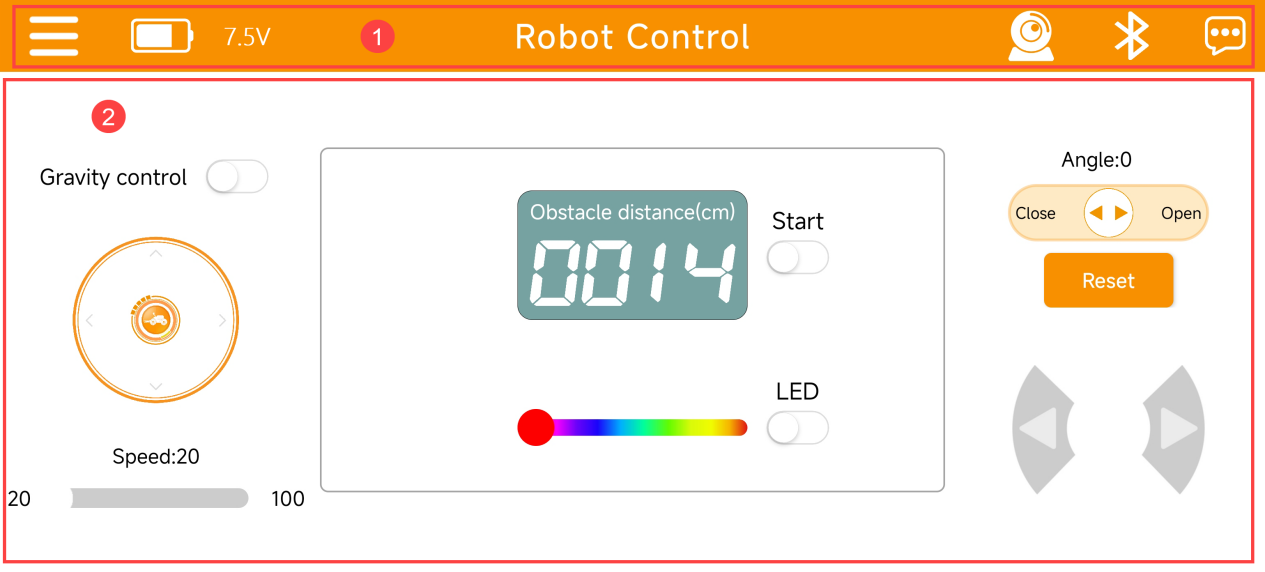
(1) Menu Bar
| Icon | Function Description |
|---|---|
 |
Return to the main screen to select the robot type |
 |
Display miniAuto's current battery level in real time |
 |
Image transmission function: view the live feed from the ESP32 camera |
 |
Bluetooth connection |
 |
More information |
(2) Control Area
| Icon | Function Description |
 |
Turn on/off the gravity control mode |
 |
Manage miniAuto's movement |
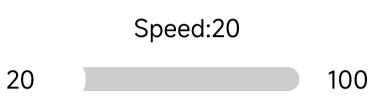 |
Adjust miniAuto's motion speed |
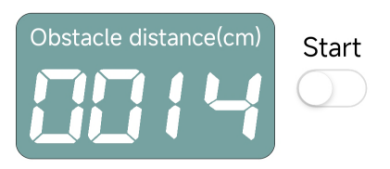 |
Display ultrasonic distance in obstacle avoidance mode. Turn on/off the ultrasonic obstacle avoidance function |
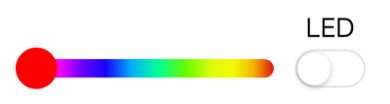 |
Adjust the color of the ultrasonic RGB light |
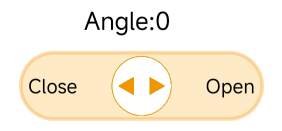 |
Advanced kit: Control the opening and closing of the robotic gripper for |
 |
Advanced kit: Return the robotic gripper to the neutral position |
 |
Control miniAuto to turn left and right |
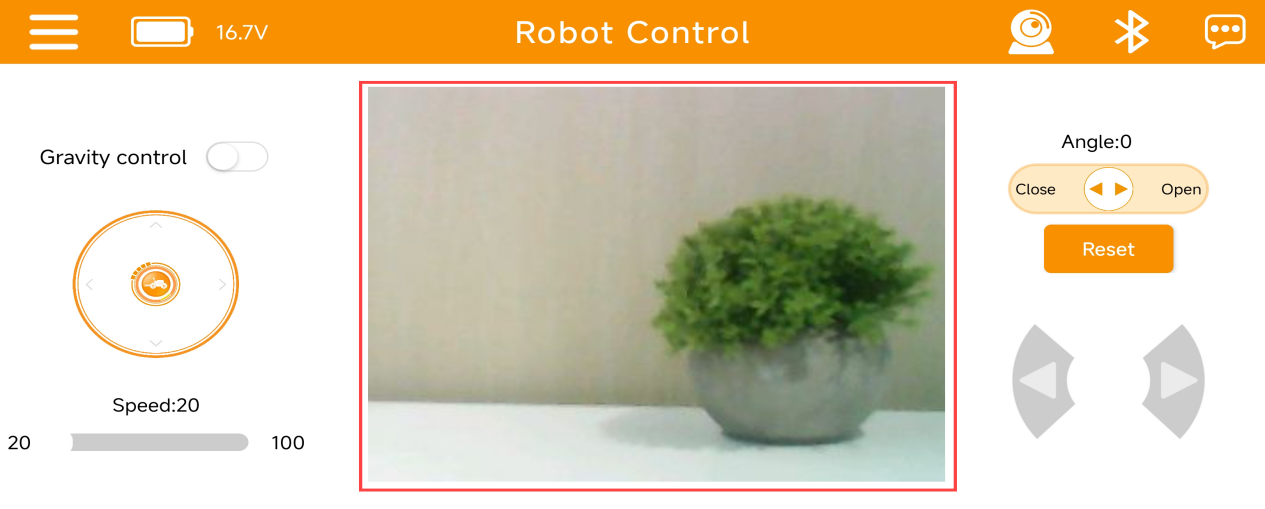
4.3.2 Live Camera Feed
(1) Tap in the upper right corner to open the live camera view, then select “Connect Hotspot”.
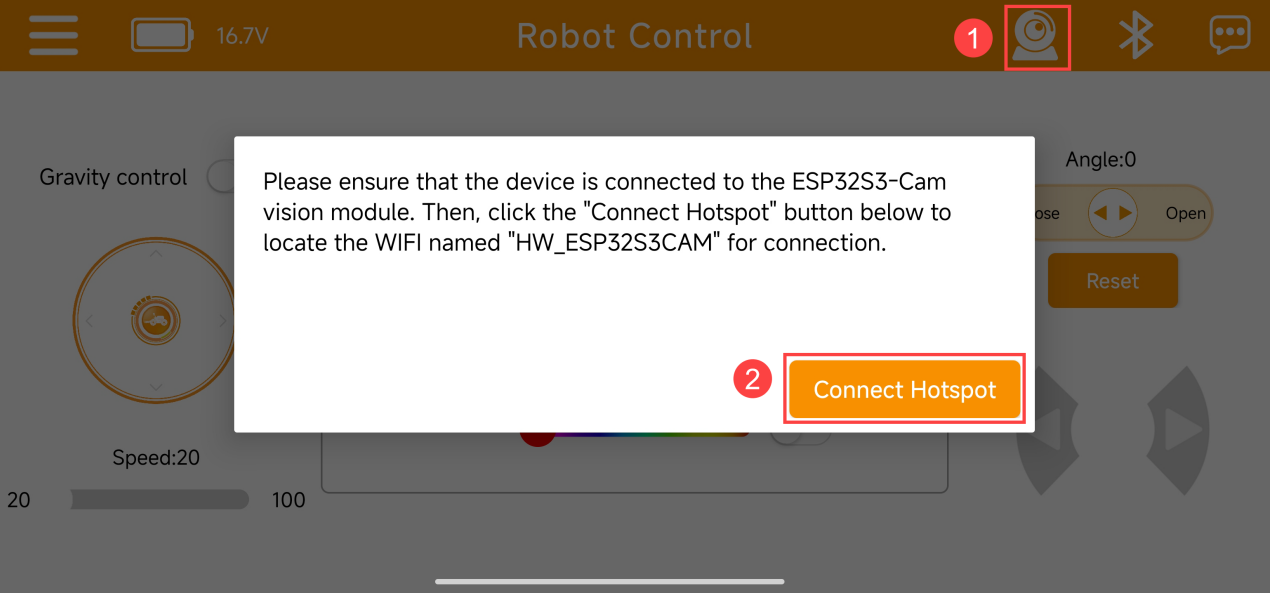
(2) Go to your phone’s Wi-Fi settings, find “HW_ESP32S3CAM”, and connect to it.
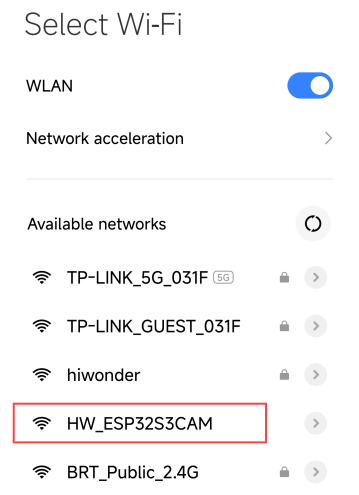
(3) Return to the app to enter image transmission mode, where you can view the live camera feed.