3. Default Program Download Instruction
The firmware, which includes basic game functions such as knob control and app control, is not pre-installed by default.
3.1 Getting Ready
Follow the steps in 2.Set Arduino Environment/2.2 Arduino IDE Instruction to import the .zip library file located in Default Program/app_control into the Arduino IDE.
If the FastLED-master.zip library has already been imported previously, you may skip this step.

3.2 Program Download
Note
Please remove the Bluetooth module before downloading the program. Failure to do so may result in a download error due to a serial port conflict.
When connecting the Type-B download cable, switch the battery box to ‘OFF’. This helps prevent the cable from accidentally contacting the power pins on the expansion board, which could cause a short circuit.
(1) Open the “app_control.ino” file located in the “app_control” folder within the same directory as this section.

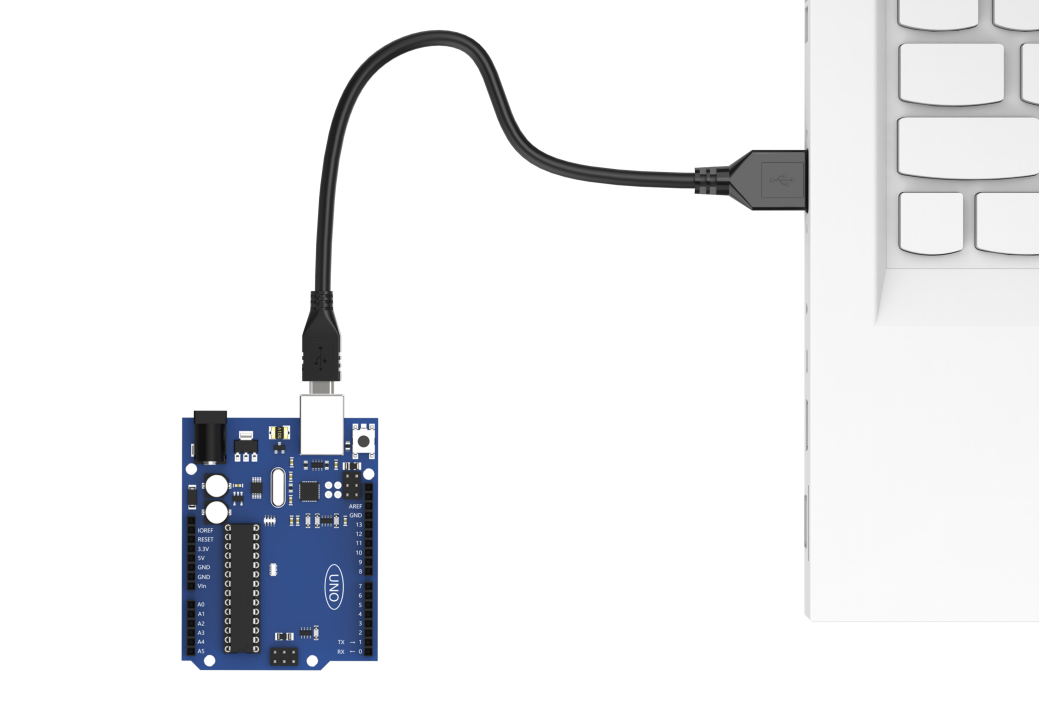
(2) Connect the Arduino board to your computer using the UNO data cable (Type-B).
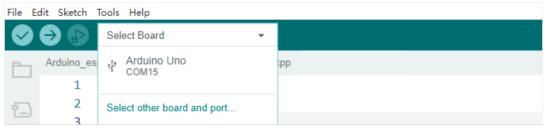
(3) Click “Select Board” in the Arduino IDE. The software will automatically detect the connected Arduino’s serial port. Then, click Connect.
(4) Click  to download the program to the Arduino board. Wait for the process to complete.


3.3 Program Outcome
Please go to 4. App Control to view the program results.