3. Remote Desktop Installation and Connection
3.1. VNC Installation and Connection
3.1.1 Preparation
Hardware
Prepare a computer. If you are using desktop computer, wireless network card is required.The network card should support 5G band.
Install VNC
VNC is a graphical remote desktop control software. Through connecting your computer to the WiFi generated by Raspberry Pi, you can control Raspberry Pi. Installation of VNC is as below.
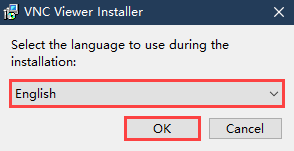
(1) Double-click the installation program “VNC-Viewer-6.17.731-Windows” in the same directory as this section. Select the installation language as “English” and lick “OK”.
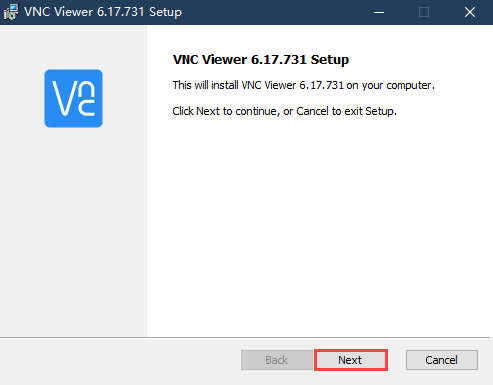
(2) Click “Next”.
(3) Tick “I accept the terms in the License Agreement”. Then click “Next”.
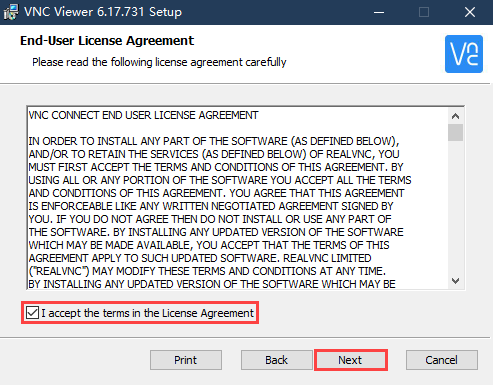
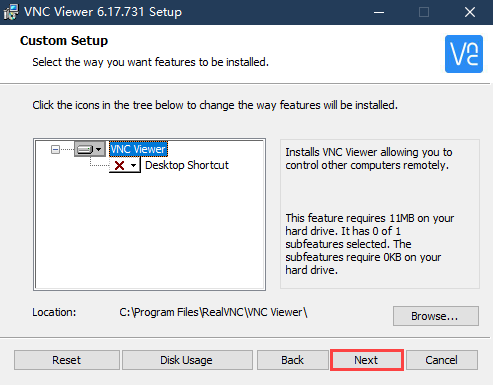
(4) Remain default location where the software is installed. Click “Next” to proceed next interface. Then directly click “Install”.
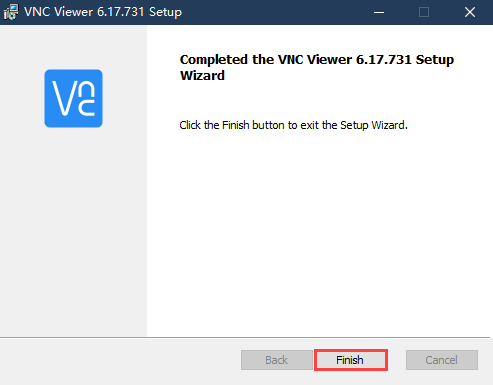
(5) When the installation completes, click “Finish”.
(6) Click  to open VNC.
Start Robot
Start Robot When LED1 on expansion board starts flickering and buzzer emits one beep, robot boots up successfully.
3.1.2 Connect to Robot
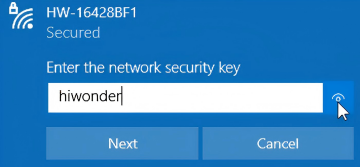
(1) After turning Robot on successfully, the default mode is AP direct connection mode. Robot generates a WiFi starting with HW. Connect your computer to this WiFi.

(2) Input password. The password is “hiwonder”.
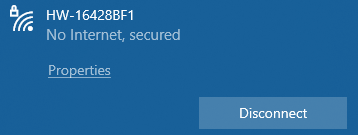
(3) After connection, open VNC Viewer. Input the default IP address of Raspberry Pi, 192.168.149.1, and then press Enter. If you receive security warning, select “Continue”.

(4) Input username and password. (Username: pi Password: raspberrypi). Click “OK” to enter Raspberry Pi desktop.

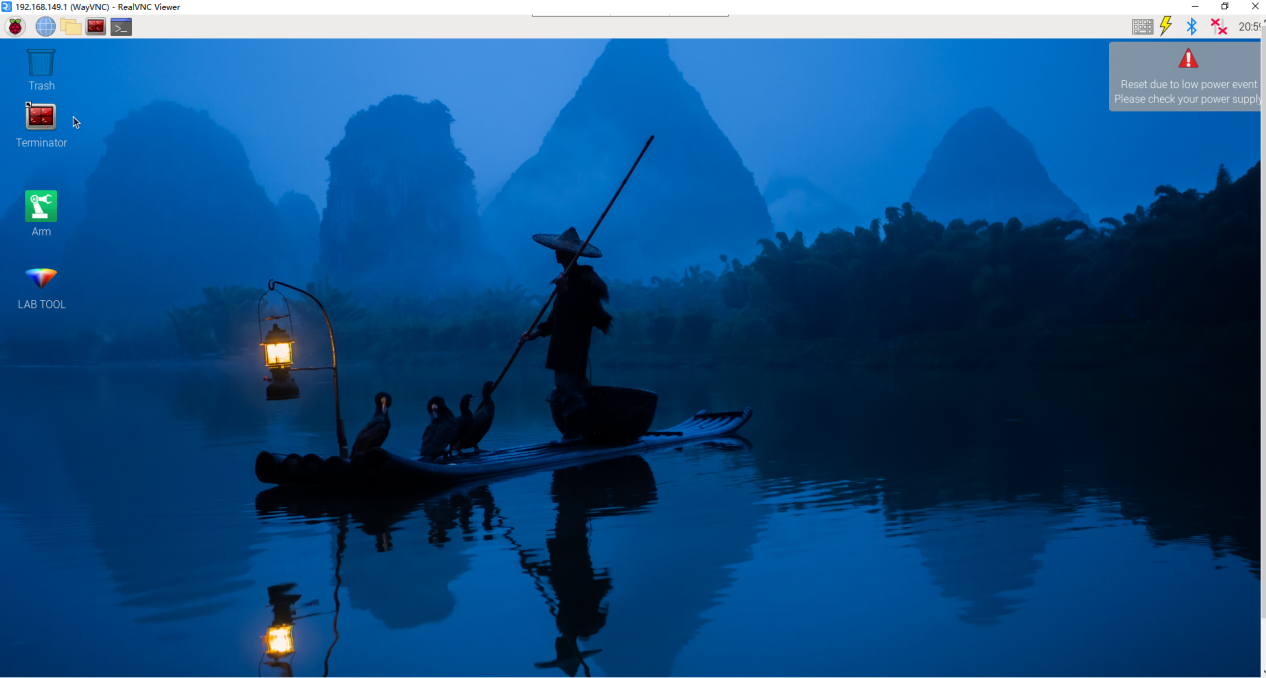
(5) The desktop is as pictured. If black screen occurs or only cursor leaves on the screen, restart Raspberry Pi.
3.1.3 Introduction to Desktop
The desktop is as pictured after connecting Robot through VNC successfully.

The following table demonstrates common functions:
| Icon | Function |
 |
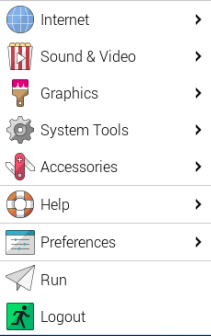
Application menu. Click to select different applications.
|
 |
Browser. |
 |
File manager. |
 |
LX terminal. Click to input command line in the opened interface. |
 |
Trash. You can find the files deleted here. |
 |
PC software. You can adjust pan tilt and adjust color threshold on it. |
 |
Full screen or exit full screen.。 |
 |
Exit full screen. |
 |
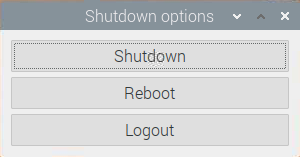
Shut down, reboot and logout
|