3. Modify Wake-up and Command Words
3.1 Modify Wake-up Word
Note
The following features are only available when using the factory firmware provided by our company. (If the factory firmware has been replaced by user-customized firmware, you can find the original factory firmware in the **”2. Software Tool & Firmware \2.Factory Firmware”**folder and re-flash it onto the module. For detailed instructions on how to flash the firmware, please refer to the document “5. Firmware Development\5.1.1 Voice Chip Firmware Development”)
User-customized firmware will not support the following features. If you require these features, please either re-flash the factory firmware or create a new custom firmware that meets your specific needs. The process for creating and flashing firmware is outlined in the document “5. Firmware Development\5.1.1 Voice Chip Firmware Development”.
Please ensure you modify the wake-up word in a quiet environment, as a noisy setting can negatively impact the accuracy of the voice interaction module.
When speaking the trigger phrase, ensure your voice is clear and loud, and avoid speaking too quickly. It is recommended to stay within a 5-meter distance from the module for optimal performance.
3.1.1 Device Connection
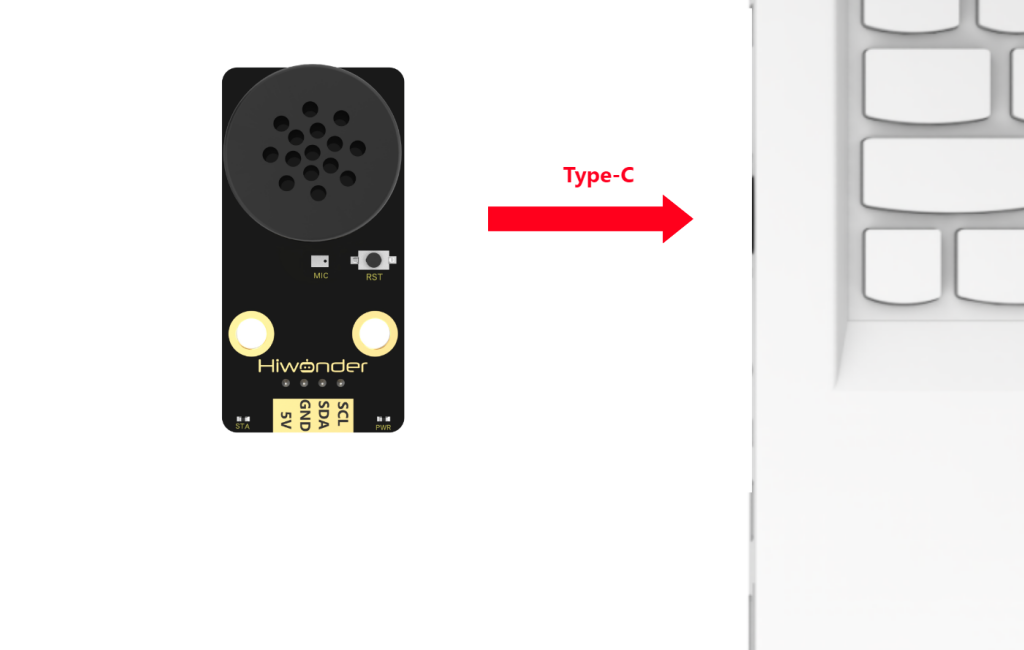
Connect the module to the computer with a Type-C cable.
3.1.2 Modify Wake-up Word

(1) Wake up the module by saying “HELLO-HI-WONDER”. When the module responds with “I’m here”, it indicates that the module is in recognition mode.
(2) Say the command “STUDY-WAKE” to the voice interaction module. If the module responds with “please say command,” it means the module has entered wake-up word learning mode.
(3) Say the desired wake-up word to the module. It is recommended to choose a short word. For example, set “Hiwonder” as the wake-up word.
(4) Once the module successfully recognizes the word, it will announce “learning succeed,” confirming that the wake-up word has been successfully modified. You can now use Hiwonder to activate the module.
Note
The default wake-up word, “HELLO-HI-WONDER”, in the factory firmware is the primary wake-up word and cannot be modified or deleted via voice. The custom wake-up word set by the user can only exist alongside the default wake-up word, meaning only one custom wake-up word can be active in addition to the default.
3.2 Modify Command Word
Note
The following features are only available when using the factory firmware provided by our company. (If the factory firmware has been replaced by user-customized firmware, you can find the original factory firmware in the “2. Software Tool & Firmware” folder and re-flash it onto the module. For detailed instructions on how to flash the firmware, please refer to the document “5. Firmware Development\5.1.1 Voice Chip Firmware Development”)
User-customized firmware will not support the following features. If you require these features, please either re-flash the factory firmware or create a new custom firmware that meets your specific needs. The process for creating and flashing firmware is outlined in the document “5. Firmware Development\5.1.1 Voice Chip Firmware Development”.
Please ensure you modify the wake-up word in a quiet environment, as a noisy setting can negatively impact the accuracy of the voice interaction module.
When speaking the trigger phrase, ensure your voice is clear and loud, and avoid speaking too quickly. It is recommended to stay within a 5-meter distance from the module for optimal performance.
3.2.1 Device Connection
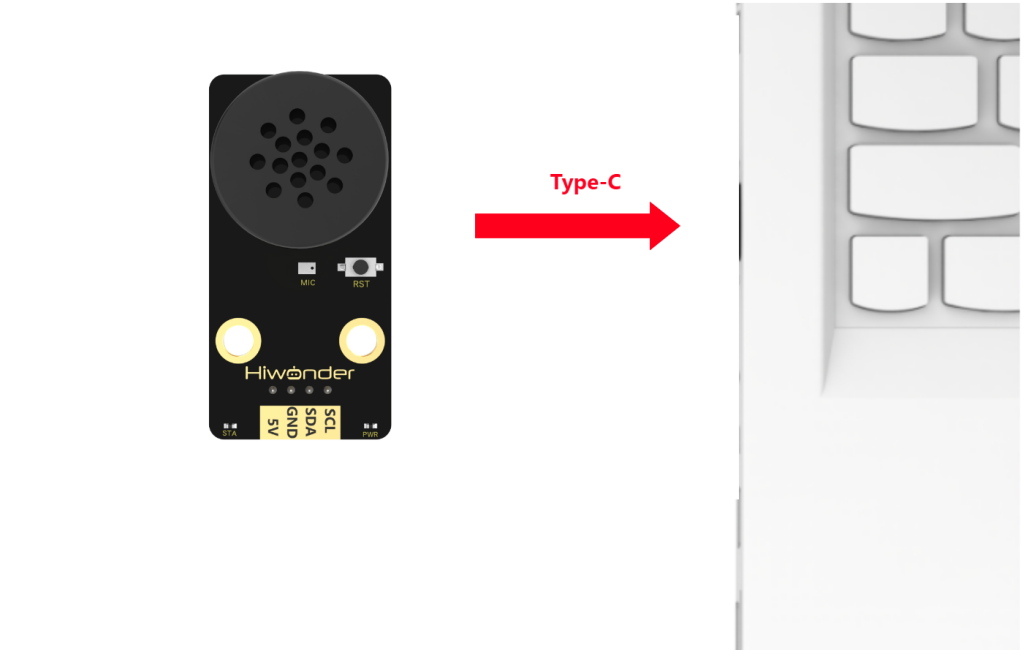
Connect the module to the computer with a Type-C cable.
3.2.2 Modify Command Word
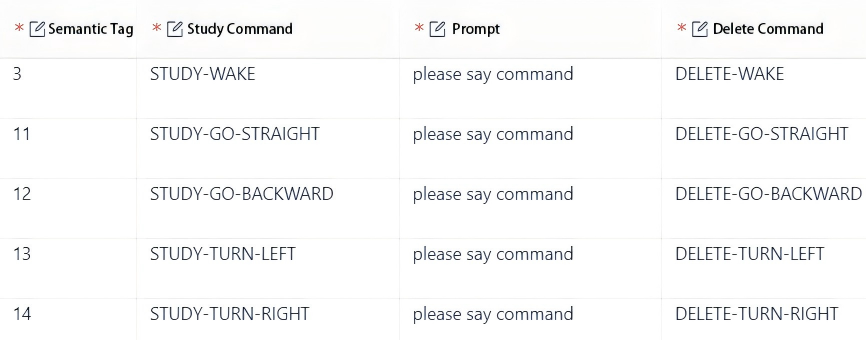
The default firmware within the voice recognition module has 4 preset command words that can be modify by voice, as shown below:
For example:
(1) Wake up the module by saying “HELLO-HI-WONDER”. When the module responds with “I’m here”, it indicates that the module is ready for recognition.
(2) Say the command “STUDY-GO-STRAIGHT” to the module. If it responds with “Please say command”, it means the module has entered command word learning mode.
(3) Say the desired command word to the module. It is recommended to choose a short and clear command. For example, set “go forward” as the new command word.
(4) Once the module successfully recognizes the command, it will broadcast “learning succeed”, confirming the modification. From now on, you can use “go forward” to perform the same action as the default “go straight” command.
(5) To delete the go forward command, simply say DELETE-GO-STRAIGHT. Note that only the go forward command will be deleted, while GO-STRAIGHT will remain unchanged.
Note
The default command words in the firmware cannot be modified or deleted via voice. Any custom command word added can only exist alongside the default ones, meaning only one custom command word can be active at a time in addition to the default commands.